The Evolution of Computer Monitors


Computer monitors are a some crucial component of the modern world. For many people, a solid computer monitor is their connection to much of their work and social life. But what a lot of people never stop to consider is that the computer monitor is an invention that has evolved considerably since its inception.
Monitors have come a long way from their earliest incarnations. This has contributed to a much lower required level of user sophistication versus the early days.

» Read More...

How do you disable the power key / button on your keyboard


How do you disable the power key / button on your keyboard which causes instant shut down? BTW have you ever seen a Keyboard power key! I was blogging from my uncle’s old computer and he had a really old keyboard. I do a lot of Print Screen screenshots for my articles and strangely enough the computer would keep shutting down.

» Read More...

How to Free-up Disk Space on your Windows PC

Dear Fenz, Today ,The cost of digital storage is going down and most newer computers ship with 500 GB to 1 TB of hard disks that are big enough to store all your files. However, if you are using Windows on an old computer with limited disk space, here is a list of things you should do to instantly recover some free space.

1. The Obvious Methods to Free Disk Space

a. Use CCleaner to quickly clear your Windows recycle bin, temporary Internet files, log files, memory dumps and other stubborn files that don’t show up in Windows Explorer. CClean also provides an option to clean your unused Windows Registry keys and your browser cookies but that won’t save any disk space.

» Read More...

Top techno news : Dell XPS One 27 All-in-One Desktop, Ivy Bridge-Infused


I am happy to tell you that There's a transformation taking place in the PC market, and despite what the doomsayers might tell you, it has nothing to do with tablets, smartphones, tweener devices like the Galaxy Note, or increasingly media-centric game consoles. No, the transformation we're observing is one where people are trading in their towers and monitors for space-saving all-in-one (AIO) desktops.

The AIO form factor isn't new by any means, but for a number of reasons, it's finally starting to gain momentum. And as they become more popular, companies like Dell have begun paying more attention to ways they can improve upon the design. To wit, Dell's new XPS One 27, reviewed here, introduces a spacious and vibrant 27-inch display with a Wide Quad HD (WQHD) 2560x1440 resolution and Samsung Plane to Line Switching (PLS) panel. It's absolutely gorgeous, more so than some professional monitors we've played with, and it's carrying an entire system in its belly.

» Read More...

Activate or make Windows 7 and Vista Genuine tricks

 To activate or make windows 7 and Vista Genuine Download Following software.It is easy to use.Just click on software and follow its steps

 Download Windows Loader

Supported Operating systems

» Read More...

Get Windows 8 Start Screen Full 3.0 for Windows XP, Vista and 7


Make your Windows to a start screen similar like upcoming Windows 8 OS. The Start Screen (start menu) in Windows 8 shows live tiles of the installed programs and its very similar to look of Windows Phone 7. This cool tool called Windows 8 Start Screen Full 3.0 will give you same ultimate look.

I've also posted many other skin packs like Android skin pack or Windows 8 Skin pack under my Windows Theme Section. This New Windows 8 Start Screen Full 3.0 transformation pack will give a ultimate feel of the upcoming completely redesigned operating system called Windows 8. You can use Windows 8 Start Screen Full 3.0 pack on any version of Windows XP, Windows Vista and Windows 7 32/64 bit version and its created by Dncube at deviantart and all credit goes to him.

Windows 8 Start Screen Full 3.0 for XP, Vista, 7
Windows 8 Start Screen (Click to Enlarge)


» Read More...

Control Upto 4 PCs With Single Keyboard & Mouse


Fullscreen%252520capture%2525209132011%25252085136%252520PM.bmp_thumb


Using multiple computers at the same desk, find it difficult to use multiple sets of mice and keyboards.Now you can share single mouse and keyboard with all the machines. You can even drag and drop files between them.


Not just this you can even copy and paste text between computers and drag files from one to the other. It's for Windows Only.
Steps to get it working.
Firstly Install the software. Now after pressing the no button on first computer , you will see a screen like shown below. Take note of Security Code and This Computer’s Name.


Fullscreen%252520capture%2525209132011%25252085142%252520PM.bmp_thumb%25255B1%25255D


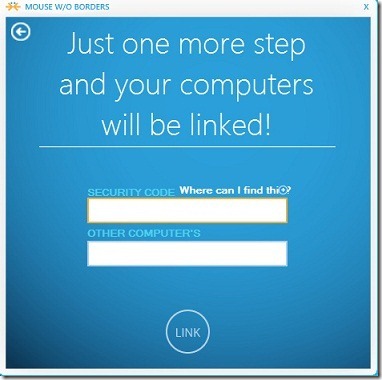
Now go to other computer , install the software. Press Yes on First Screen . You will see a screen shown below. Type in the Security Code and Other Computer’s Name which you copied earlier.

Fullscreen%252520capture%2525209132011%25252085148%252520PM.bmp_thumb


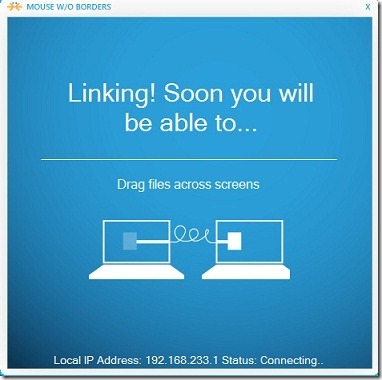
After this you will see a screen shown below

.
Fullscreen%252520capture%2525209132011%25252085215%252520PM.bmp_thumb


After successful linking you will see a screen shown below. Now just take your mouse and hit it on the left and right side of the screen and switch between all the computers. That’s it.

Fullscreen%252520capture%2525209132011%25252090500%252520PM.bmp_thumb


Download

» Read More...

How to remove Recycle Bin from the desktop:

 When our pc starts we usually see recycle bin on the desktop. Sometime we think that it should not have on the desktop. So how to remove it from desktop I have tell you bellow.

To remove Recycle Bin from the desktop:
  • Run REGEDIT.
  • Find NAMESPACE key in left pane (HKEY_Local_Macine \ Software \ Microsoft \ Windows \ Current Version \ Explorer \ Desktop \ Namespace)
  • Expand NAMESPACE (click '+' box)
  • Delete the value RECYCLE BIN in right pane.
Note: Be careful while editing registries it can cause serious damage to your system.

» Read More...

How to increase virtual memory

 Some big games which require higher RAM can not be played. So there is a way to make it possible by increasing virtual memory of our computer. How that is as below......

To speed up your windows or to increase RAM virtually, 

Right click on My Computer 


>> Properties 


>> Advanced 


>> Performance - Settings 


>> Advanced 


>> Virtual Memory - Change 


Keep the initial size same as recommended and maximum size double of it then restart your system.
It will improve speed of windows and you can play some games which require higher RAM.

» Read More...

Lock Your Computer Using Mouse


Friends now it is easy to lock you computer using mouse, lets see a simple trick on how to lock your PC using mouse click. We normally use Alt + Ctrl + Del or Windows + L to lock our PCs. Instead of trying those windows keyboard shortcut keys to lock Pc, lets now tryout something new. Some might have already known this trick.

Trick to Lock Your Computer Using Mouse: -


  • Just Right click on the desktop, point to New and click Shortcut.

  •  In the create Shortcut dialog box, copy “rundll32 user32.dll LockWorkStation” without quotes paste into the ‘Type the location’ of the item box.
  • Click Next

  • In ‘Type a neme for this shortcut’’ , type LOCK MY PC & click Finish.

  • Now you just double click on the icon ‘LOCK MY PC’ & your desktop will be lock.

» Read More...

Keyboard Tricks That Few People Know About


I provide you  shortcuts for Windows XP and Firefox that almost you do not aware with them . These may work in other applications also.

Windows XP

1. [SHIFT] + [alt] + [PrntScrn] – high contrast

A window will open, click OK or simply hit [Enter]. This will enlarge the font on all open Windows and change colors to high contrast. For example the desktop will turn black, what was black text on white background will be reversed. Clicking the same key combination again reverts the changes.

2. [Ctrl] + [alt] + [up/down/left/right arrow] – rotate screen

This won’t work on every machine as it depends on your graphics card and video drivers. However, if it does work, it will rotate your desktop.

3. [Ctrl] + select items from taskbar, right-click selected – mass control open windows

cool keyboard tricksYou need to hold the [Ctrl] key while selecting open windows from the taskbar. To open the menu seen on the left, right-click any of the selected items.

This can save a ton of time wasted on rearranging windows.

4. [Alt] + [Tab] – switch between running programs

A little window will launch showing all open programs. Click the [Tab] key to jump to the next application, release keys to open the selected one.

5. [SHIFT] + [Del] – bypass Recycle Bin

Selecting a file and pressing the combination above will invoke a delete confirmation dialog. Clicking ‘Yes’ will delete the file without sending it to the Recycle Bin.

6. [Windows] + [D] – show desktop or restore open windows

This is the keyboard shortcut to the respective quick launch taskbar icon.

7. [Windows] + [L] – lock system


An easy way to quickly protect and lock your system. When you log back in, all programs will still be running and windows will appear just the way you left them.

8. [Ctrl] + [Z] and [Ctrl] + [Y] – undo and redo

I’m sure you all know that you can undo changes using the [Ctrl] + [Z] shortcut. Wouldn’t it be awesome to have this feature outside the computer?  Anyways, you can undo an undo, i.e. redo what you did using the [Ctrl] + [Y] key combination.

9. [Windows] + [R], type cmd, hold [Ctrl] + [SHIFT] and hit Enter – run command prompt as Administrator

The command prompt will now be run as Administrator.

10. Create your own keyboard trick!

cool keyboard tricksAre there folders or applications you need a lot?  Why not create your own keyboard shortcut to quickly access these tools?

This will only work for shortcuts located on your desktop!

First you need to create an actual desktop shortcut. Right-click on the application and select > Create Shortcut from the context menu. Make sure the shortcut sits on your desktop. Now right-click the shortcut and select > Properties. You should see a line that says “Shortcut Key: ”. Click that line and then click a letter ony our keyboard, for example P. A shortcut will be created, in this example [Ctrl] + [alt] + [P]. And there you go, now you have your own personal shortcut key.
Firefox

1. [Ctrl] + [1] to [9] – jump to tab numbers 1 to 8 or last tab (9)

Rather than scrolling through all your open tabs, you can quickly navigate to a specific tab if you know its position. For example, clicking [Ctrl] + [4] will open to tab number 4 (from the left). With [Ctrl] + [9] you will jump to the very last tab, no matter how many you have open.

2. [Ctrl] + [Tab] or [Ctrl] + [SHIFT] + [Tab] – move up/right or down/left in tabs

Neat shortcut to move between tabs.

3. [/] or ['] – Find As You Type Text or Link

Firefox has a neat search feature, which is Find As You Type. When you click the [/] key before starting to type your search, Firefox will only search in text. Likewise, clicking the ['] key will only find links.

cool keyboard tricks

4. [Ctrl] + mouse wheel – change font size

With the new generation high resolution screens we often find that text on websites is way too small to read properly. Here is a little trick that can quickly increase the font size for better reading.

While you hold down the control key, move your mousewheel to increase or decrease the font size in Firefox. This will also work in other programs, for example Word.

This is also very useful for making a website fit your window size, rather than to adapt the browser window.

keyboard tricks

5. [Ctrl] + [F4] – close tab

A quick, mouseless way to close a tab.

6. [alt] + [F4] – close window

This will rapidly shut down Firefox.

7. [Ctrl] + [SHIFT] + [T] – open closed tab/s

Did you accidentally close that tab? Re-open it using this key combination.

8. [Spacebar] or [SHIFT] + [Spacebar] – scroll PageDown or PageUp

Give your mouse wheel a break and use the spacebar to move up and down a website.

9. [F7] – caret browsing

Caret browsing allows you to select and copy text from web pages using the keyboard.

keyboard tricks

10. [F11] – toggle full screen
Quickly change into full screen mode.

Find out about more shortcuts for Firefox, Windows and more Windows.  Also find out your favourite Firefox shortcut in our Poll.

Which ones are your favorites that didn’t make it to the list above?

» Read More...

Windows 8 Tablets with 720p Cameras, 10GB of Free Memory

Windows 8 tablet PCs will have to arrive on shelves with a minimum set of components, the newly published hardware requirement documentation for Windows 8 logo certification shows.


Windows 8

With such requirements in place, Microsoft wants to make sure that upcoming devices will not lag in performance, and that users will have the experience intended.

This is not something new for Microsoft, as the company adopted a similar approach with Windows Phone (some suggest that these limitations might have prevented the OS from taking off).
 

For example, these tablet PCs will have to pack a minimum of 10GB of internal memory after the initial setup process completes and all things are up and running.

Moreover, Microsoft imposes that there will be a 720p-capable camera packed with these devices. Tablets will also have to pack Magnetometer, Gyroscope, Accelerometer (3 axes w/ data rates >= 50Hz), and Ambient Light Sensor (1-30k lux capable w/ dynamic range of 5-60K).

When it comes to graphics, Direct3D 10 device w/ WDDM 1.2 driver is a requirement. The screen will have to deliver a minimum 1366 × 768 pixels resolution and will have to support at least 5 touch points.

Windows 8 tablet PCs will also have to have WLAN and Bluetooth 4.0 + LE (low energy) connectivity packed inside, as well as NFC (Near Field Communication) and USB 2.0. Speakers will also be part of the mix, as well as the UEFI system firmware.

On x86-compatible Windows 8 PCs, Microsoft imposes a two seconds resume feature to be implemented. Since ARM is new to the Windows space, it makes sense in a way for Microsoft not to impose such strict requirements for tablet PCs powered by it.

Another new feature that Windows 8 will come with on tablet PCs is the option to press Windows Key + Power instead of the Ctrl+Alt+Del sequence. The on-screen keyboard will remain an option as well, WithinWindows notes.

Another important feature that Windows 8 users will enjoy is the support for no-reboot upgrade of graphic card drivers. There will be no more XDDM drivers in Windows 8, but only WDDM drivers, which make the feature possible.

» Read More...

All keyboard Shortcuts

Windows Shortcuts
Shift + F10 right-clicks.
Win + L (XP Only): Locks keyboard. Similar to Lock Workstation.
Win + F or F3: Open Find dialog. (All Files) F3 may not work in some applications which use F3 for their own find dialogs.
Win + Control + F: Open Find dialog. (Computers)
Win + U: Open Utility Manager.
Win + F1: Open Windows help.
Win + Pause: Open System Properties dialog.
Win + Tab: Cycle through taskbar buttons. Enter clicks, AppsKey or Shift + F10 right-clicks.
Win + Shift + Tab: Cycle through taskbar buttons in reverse.
Alt + Tab: Display Cool Switch. More commonly known as the AltTab dialog.
Alt + Shift + Tab: Display Cool Switch; go in reverse.
Alt + Escape: Send active window to the bottom of the z-order.
Alt + Shift + Escape: Activate the window at the bottom of the z-order.
Alt + F4: Close active window; or, if all windows are closed, open shutdown dialog.
Shift while a CD is loading: Bypass AutoPlay.
Shift while login: Bypass startup folder. Only those applications will be ignored which are in the startup folder, not those started from the registry (Microsoft\Windows\CurrentVersion\Run\)
Ctrl + Alt + Delete or Ctrl + Alt + NumpadDel (Both NumLock states): Invoke the Task Manager or NT Security dialog.
Ctrl + Shift + Escape (2000/XP ) or (Ctrl + Alt + NumpadDot) : Invoke the task manager. On earlier OSes, acts like Ctrl + Escape.
Print screen: Copy screenshot of current screen to clipboard.
Alt + Print screen: Copy screenshot of current active window to clipboard.
Ctrl + Alt + Down Arrow: Invert screen. Untested on OS's other than XP.
Ctrl + Alt + Up Arrow: Undo inversion.
Win + B : Move focus to systray icons.

General
 
Ctrl + C or Ctrl + Insert: Copy.
Ctrl + X or Shift + Delete: Cut.
Ctrl + V or Shift + Insert: Paste/Move.
Ctrl + N: New... File, Tab, Entry, etc.
Ctrl + S: Save.
Ctrl + O: Open...
Ctrl + P: Print.
Ctrl + Z: Undo.
Ctrl + A: Select all.
Ctrl + F: Find...
Ctrl+W : to close the current window
Ctrl + F4: Close tab or child window.
F1: Open help.
F11: Toggle full screen mode.
Alt or F10: Activate menu bar.
Alt + Space: Display system menu. Same as clicking the icon on the titlebar.
Escape: Remove focus from current control/menu, or close dialog box.

General Navigation
 
Tab: Forward one item.
Shift + Tab: Backward one item.
Ctrl + Tab: Cycle through tabs/child windows.
Ctrl + Shift + Tab: Cycle backwards through tabs/child windows.
Enter: If a button's selected, click it, otherwise, click default button.
Space: Toggle items such as radio buttons or checkboxes.
Alt + (Letter): Activate item corresponding to (Letter). (Letter) is the underlined letter on the item's name.
Ctrl + Left: Move cursor to the beginning of previous word.
Ctrl + Right: Move cursor to the beginning of next word.
Ctrl + Up: Move cursor to beginning of previous paragraph. This and all subsequent Up/Down hotkeys in this section have only been known to work in Rich Edit controls.
Ctrl + Down: Move cursor to beginning of next paragraph.
Shift + Left: Highlight one character to the left.
Shift + Right: Highlight one character to the right.
Shift + Up: Highlight from current cursor position, to one line up.
Shift + Down: Highlight from current cursor position, to one line down.
Ctrl + Shift + Left: Highlight to beginning of previous word.
Ctrl + Shift + Right: Highlight to beginning of next word.
Ctrl + Shift + Up: Highlight to beginning of previous paragraph.
Ctrl + Shift + Down: Highlight to beginning of next paragraph.
Home: Move cursor to top of a scrollable control.
End: Move cursor to bottom of a scrollable control.

File Browser
Arrow Keys: Navigate.
Shift + Arrow Keys: Select multiple items.
Ctrl + Arrow Keys: Change focus without changing selection. "Focus" is the object that will run on Enter. Space toggles selection of the focused item.
(Letter): Select first found item that begins with (Letter).
BackSpace: Go up one level to the parent directory.
Alt + Left: Go back one folder.
Alt + Right: Go forward one folder.
Enter: Activate (Double-click) selected item(s).
Alt + Enter: View properties for selected item.
F2: Rename selected item(s).
Ctrl + NumpadPlus: In a Details view, resizes all columns to fit the longest item in each one.
Delete: Delete selected item(s).
Shift + Delete: Delete selected item(s); bypass Recycle Bin.
Ctrl while dragging item(s): Copy.
Ctrl + Shift while dragging item(s): Create shortcut(s).
In tree pane, if any:
Left: Collapse the current selection if expanded, or select the parent folder.
Right: Expand the current selection if collapsed, or select the first subfolder.
Numpad Asterisk: Expand currently selected directory and all subdirectories. No undo.
Numpad Plus: Expand currently selected directory.
Numpad Minus: Collapse currently selected directory.

Accessibility

Right Shift for eight seconds: Toggle FilterKeys on and off. FilterKeys must be enabled.
Left Alt + Left Shift + PrintScreen: Toggle High Contrast on and off. High Contrast must be enabled.
Left Alt + Left Shift + NumLock: Toggle MouseKeys on and off. MouseKeys must be enabled.
NumLock for five seconds: Toggle ToggleKeys on and off. ToggleKeys must be enabled.
Shift five times: Toggle StickyKeys on and off. StickyKeys must be enabled.
6.) Microsoft Natural Keyboard with IntelliType Software Installed
Win + L: Log off Windows.
Win + P: Open Print Manager.
Win + C: Open control panel.
Win + V: Open clipboard.
Win + K: Open keyboard properties.
Win + I: Open mouse properties.
Win + A: Open Accessibility properties.
Win + Space: Displays the list of Microsoft IntelliType shortcut keys.
Win + S: Toggle CapsLock on and off.

Remote Desktop Connection Navigation

Ctrl + Alt + End: Open the NT Security dialog.
Alt + PageUp: Switch between programs.
Alt + PageDown: Switch between programs in reverse.
Alt + Insert: Cycle through the programs in most recently used order.
Alt + Home: Display start menu.
Ctrl + Alt + Break: Switch the client computer between a window and a full screen.
Alt + Delete: Display the Windows menu.
Ctrl + Alt + NumpadMinus: Place a snapshot of the entire client window area on the Terminal server clipboard and provide the same functionality as pressing Alt + PrintScreen on a local computer.
Ctrl + Alt + NumpadPlus: Place a snapshot of the active window in the client on the Terminal server clipboard and provide the same functionality as pressing PrintScreen on a local computer.

Mozilla Firefox Shortcuts

Ctrl + Tab or Ctrl + PageDown: Cycle through tabs.
Ctrl + Shift + Tab or Ctrl + PageUp: Cycle through tabs in reverse.
Ctrl + (1-9): Switch to tab corresponding to number.
Ctrl + N: New window.
Ctrl + T: New tab.
Ctrl + L or Alt + D or F6: Switch focus to location bar.
Ctrl + Enter: Open location in new tab.
Shift + Enter: Open location in new window.
Ctrl + K or Ctrl + E: Switch focus to search bar.
Ctrl + O: Open a local file.
Ctrl + W: Close tab, or window if there's only one tab open.
Ctrl + Shift + W: Close window.
Ctrl + S: Save page as a local file.
Ctrl + P: Print page.
Ctrl + F or F3: Open find toolbar.
Ctrl + G or F3: Find next...
Ctrl + Shift + G or Shift + F3: Find previous...
Ctrl + B or Ctrl + I: Open Bookmarks sidebar.
Ctrl + H: Open History sidebar.
Escape: Stop loading page.
Ctrl + R or F5: Reload current page.
Ctrl + Shift + R or Ctrl + F5: Reload current page; bypass cache.
Ctrl + U: View page source.
Ctrl + D: Bookmark current page.
Ctrl + NumpadPlus or Ctrl + Equals (+/=): Increase text size.
Ctrl + NumpadMinus or Ctrl + Minus: Decrease text size.
Ctrl + Numpad0 or Ctrl + 0: Set text size to default.
Alt + Left or Backspace: Back.
Alt + Right or Shift + Backspace: Forward.
Alt + Home: Open home page.
Ctrl + M: Open new message in integrated mail client.
Ctrl + J: Open Downloads dialog.
F6: Switch to next frame. You must have selected something on the page already, e.g. by use of Tab.
Shift + F6: Switch to previous frame.
Apostrophe ('): Find link as you type.
Slash (/): Find text as you type.
Gmail Shortcuts
Note: Must have "keyboard shortcuts" on in settings.
C: Compose new message.
Shift + C: Open new window to compose new message.
Slash (/): Switch focus to search box.
K: Switch focus to the next most recent email. Enter or "O" opens focused email.
J: Switch focus to the next oldest email.
N: Switch focus to the next message in the "conversation." Enter or "O" expands/collapses messages.
P: Switch focus to the previous message.
U: Takes you back to the inbox and checks for new mail.
Y: Various actions depending on current view:
Has no effect in "Sent" and "All Mail" views.
Inbox: Archive email or message.
Starred: Unstar email or message.
Spam: Unmark as spam and move back to "Inbox."
Trash: Move back to "Inbox."
Any label: Remove the label.
X: "Check" an email. Various actions can be performed against all checked emails.
S: "Star" an email. Identical to the more familiar term, "flagging."
R: Reply to the email.
A: Reply to all recipients of the email.
F: Forward an email.
Shift + R: Reply to the email in a new window.
Shift + A: Reply to all recipients of the email in a new window.
Shift + F: Forward an email in a new window.
Shift + 1 (!): Mark an email as spam and remove it from the inbox.
G then I: Switch to "Inbox" view.
G then S: Switch to "Starred" view.
G then A: Switch to "All Mail" view.
G then C: Switch to "Contacts" view.
G then S: Switch to "Drafts" view.

List of F1-F9 Key Commands for the Command Prompt

F1 / right arrow: Repeats the letters of the last command line, one by one.
F2: Displays a dialog asking user to "enter the char to copy up to" of the last command line
F3: Repeats the last command line
F4: Displays a dialog asking user to "enter the char to delete up to" of the last command line
F5: Goes back one command line
F6: Enters the traditional CTRL+Z (^z)
F7: Displays a menu with the command line history
F8: Cycles back through previous command lines (beginning with most recent)
F9: Displays a dialog asking user to enter a command number, where 0 is for first command line entered.
Alt+Enter: toggle full Screen mode.
up/down: scroll thru/repeat previous entries
Esc: delete line
Note: The buffer allows a maximum of 50 command lines. After this number is reached, the first line will be replaced in sequence.
 Helpful accessibility keyboard shortcuts
Switch FilterKeys on and off. Right SHIFT for eight seconds
Switch High Contrast on and off. Left ALT +left SHIFT +PRINT SCREEN
Switch MouseKeys on and off. Left ALT +left SHIFT +NUM LOCK
Switch StickyKeys on and off. SHIFT five times
Switch ToggleKeys on and off. NUM LOCK for five seconds

» Read More...

MAKE YOUR MENUS LOAD FASTER

This is one of my favorite tweaks as it makes a huge difference to how fast your machine will 'feel'. What this tweak does is remove the slight delay between clicking on a menu and XP displaying the menu.
  
 Go to Start then Run
 Type 'Regedit' then click 'Ok'
 Find "HKEY_CURRENT_USER\Control Panel\Desktop\"
 Select "MenuShowDelay"
 Right click and select "Modify'
 Reduce the number to around "100"
 This is the delay time before a menu is opened. You can set it to "0" but it can make windows really hard to use as menus will open if you just look at them - well move your mouse over them anyway. I tend to go for anywhere between 50-150 depending on my mood.

» Read More...

To convert a FAT partition to NTFS

To convert a FAT partition to NTFS, perform the following steps.

 Click Start, click Programs, and then click Command Prompt. In Windows XP, click Start, click Run, type cmd and then click OK.
 At the command prompt, type CONVERT [driveletter]: /FS:NTFS. Convert.exe will attempt to convert the partition to NTFS.
NOTE:
 Although the chance of corruption or data loss during the conversion from FAT to NTFS is minimal, it is best to perform a full backup of the data on the drive that it is to be converted prior to executing the convert command.

» Read More...

Delete or Remove Recycle bin Icon from Desktop

 If you are the kind of person who always likes neatness specially desktop, then here is a small trick for you that will simply remove the Recycle bin icon from desktop.
 
Follow the steps below:
[Start] [Run] [Regedit]
 Registry Key: HKEY_LOCAL_MACHINE\SOFTWARE\Microsoft\Windows\
CurrentVersion\Explorer\BitBucket

 Modify/Create the Value Data Type(s) and Value Name(s) as detailed below.

 Data Type: DWORD // Value Name: NukeOnDelete

 Setting for Value Data: [0 = Use Recycle Bin / 1 = Permanently Delete]
 Exit Registry and Reboot

   Another Method
 start->run->gpedit.msc-> user configuration ->desktop->remove recycle bin from desktop->double click->change it not configured to enable->apply and ok.
 now come to start->run->gpupdate.exe and press enter.
 your recycle bin icon is gone from desktop nad you will need to revert your settings for get that back.
 after reverting setting make sure to run gpupdate.exe command.

» Read More...

Create nameless files and folders in windows

   This trick will allow you to create files and folders without any name.
 Just follow the following steps:
1. Select any file or folder.
2. Right click on it, press rename or simply press F2.
3. Press and hold the alt key. While holding the Alt key, type numbers 0160 from the numpad.
Note: Type the numbers 0160 from the numpad, that is, the numbers present on the right side of the keyboard. Don't type the numbers which are present on top of the character keys.
          
4. Press Enter and the nameless file or folder will be created.
Reason: The file or folder that seems nameless is actually named with a single space.
 But what if you want to create another nameless file or folder in the same directory ?
 For this you will have to rename the file with 2 spaces. Just follow these steps below:
1. Select file, press F2.
2. Hold alt key and type 0160 from the numpad.
3. Release the alt key. Now without doing anything else, again hold alt key and press 0160.
4. Press enter and you will have second nameless file in the same directory.
5. Repeat step 3 to create as many nameless files or folders in the same directory.

» Read More...

Optimize Display Settings in Windows XP for better performance

Windows XP can look sexy but displaying all the visual items can waste system resources. To optimize:
 1. Go to Start
 2. Click Settings
 3. Click Control Panel
 4. Click System
 5. Click Advanced tab
 6. In the Performance tab click Settings
 7. Leave only the following ticked:

 - Show shadows under menus
 - Show shadows under mouse pointer
 - Show translucent selection rectangle
 - Use drop shadows for icons labels on the desktop
 - Use visual styles on windows and buttons

» Read More...

Single Click Shutdown for Windows OS

Did you know that in Windows XP you can shut down your computer from the (eventually DOS prompt) command line box? Moreover, you can do this by clicking your mouse only once.
 All you need to do is... right-click on an empty Desktop spot -> select New -> Shortcut -> type shutdown followed by a space, and then enter one or more of the parameters listed below -> click Next -> type a suggestive name for your new shortcut -> finally, click Finish.
 This is the Shutdown.exe (located in %systemroot%\System32, usually C:\Windows\System32) syntax:
 shutdown [-i|-l|-s|-r|-a] [-f] [-m file://computername/] [-t xx] [-c "Text"] [-d[u][p]:xx:yy]>
 Valid command line switches:
 -a = Abort system shutdown in progress ONLY IF the -t xx timeout option was already set to ANY value other than 0. ALL switches except -l and -m are ignored during abort.
 -c "Text" = Text comment (case insensitive) to be displayed in the Message area of the System Shutdown window. MUST be enclosed between quotes. Maximum allowed 127 ASCII characters.
 -d [u][p]:xx:yy = Reason code for shutdown:
 u = User code.
 p = Planned shutdown code.
 xx = Major reason code. Positive integer number less than 256.
 yy = Minor reason code. Positive integer number less than 65536.
 -f = Force running applications to close without warning.
 -i = Display the shutdown interface (GUI). MUST be the first option!
 -l = Log off the current user of the local computer (default action). Can NOT be used with the -m option unless the current user has Sysadmin rights, in which case the -m switch takes precedence.
 -m file://computername/ = Remote/network computer name (most always case sensitive) to log off/restart/shut down. Current user MUST have Sysadmin rights to be allowed to use this switch!
 -s = Shut down the local computer.
 -r = Shut down and restart (reboot) the local computer.
 -t xx = Set shutdown timer to timeout for xx seconds. IF NOT specified defaults to 20 seconds. Allowed values between 0 and 99 seconds. The -a switch is the ONLY one that CAN be used during the timeout period.
NOTE:
 The dash (-) in front of these switches can be replaced by a forward slash (/).
 Spaces are NOT required to separate the shutdown command from ANY following switches, but ARE required to separate ANY switch from its following parameter(s), if any.
 For example:
shutdown -s -c "Shutting down!" -t 3
 tells your computer to shutdown after waiting for 3 seconds while the System Shutdown window will display text above in the Message area.
 Optional: after you're done creating your customized shortcut for shutdown -> right-click on it -> select Properties -> enter your desired key "combo" in the Shortcut Key box (e.g. Ctrl + Alt + End) -> click OK/Apply.
 From now on just left-click on your shutdown shortcut or hit that key combination to turn off/restart/log off your computer.

» Read More...

Trick to lock your private folder

  Do you worry about privacy or do you maintain some personal files on the office system or at Friends pc, then you must lock that folder. I know many software's that most people use to lock their Personal files. But this trick is the safest and locks files or folders without use of any software's.  
           Suppose you want to lock the folder movies in d: which has the path D:\movies.
In the same drive create a text file and type

ren movies movies.{21EC2020-3AEA-1069-A2DD-08002B30309D}

 Now save this text file as loc.bat

 Create another text file and type in it

ren movies.{21EC2020-3AEA-1069-A2DD-08002B30309D} movies

 Now save this text file as key.bat
      Now you can see 2 batch files loc and key. Press loc and the folder movies will change to control panel and you cannot view its contents. Press key and you will get back your original folder.
 try it out!!!!!!!
Note: It is safe as in case if you loose the key file, you can create it again but the folder name must be correct.

» Read More...

ShareThis Post

ShareThis